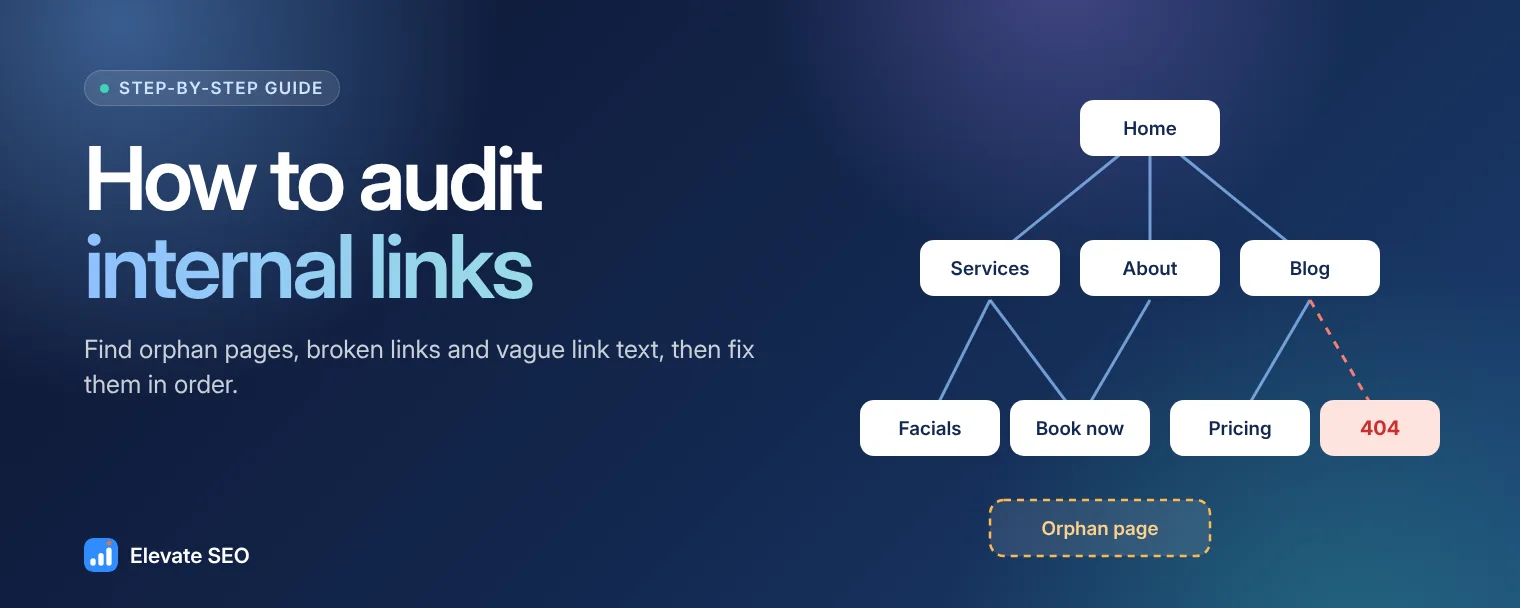
Internal links are the links from one page of your website to another. They're how visitors move from your homepage to the service they want, and how Google finds your pages and works out which ones matter most. This guide walks through auditing them step by step, using Elevate SEO on a real site: my own.
Most small business sites have the same three problems. Important pages that almost nothing links to. Links that only live in the menu and footer. And a few links that quietly broke when a page was renamed. None of them show up when you look at the site in a browser, which is why they go unfixed for years.
Why internal links matter
Google says it uses links to find new pages and uses the link text to understand what the linked page is about (Google's link best practices). In practice, internal links do three jobs:
- Discovery. A page that no other page links to is hard for Google to find and easy for visitors to miss.
- Priority. Pages you link to often, especially from the homepage, signal to Google which pages matter most on your site.
- Context. Link text like "laser hair removal in Calgary" tells Google and AI assistants what the next page covers. "Click here" tells them nothing.
They also matter for bookings. A visitor reading about one treatment who sees a link to a related one, or to your booking page, is one click closer to becoming a customer.
What a healthy internal link setup looks like
Before running anything, it helps to know what you're aiming for:
- Every page you want to rank is linked from at least one other page.
- Your key service pages are no more than three clicks from the homepage.
- Each page links to a few related pages from inside the page copy, not only from the menu and footer.
- Link text describes the page it points to.
- No links lead to a missing page or an error.
- Links point at the final address of a page, not at an old address that redirects.
Step 1: Run a quick audit on your homepage
In the Elevate SEO dashboard, open Site audit, choose Quick audit, and enter your domain. Add the main keyword you want the page to rank for too. It isn't needed for the link checks, but it makes the rest of the audit more useful. A quick audit checks one page and costs 1 credit.
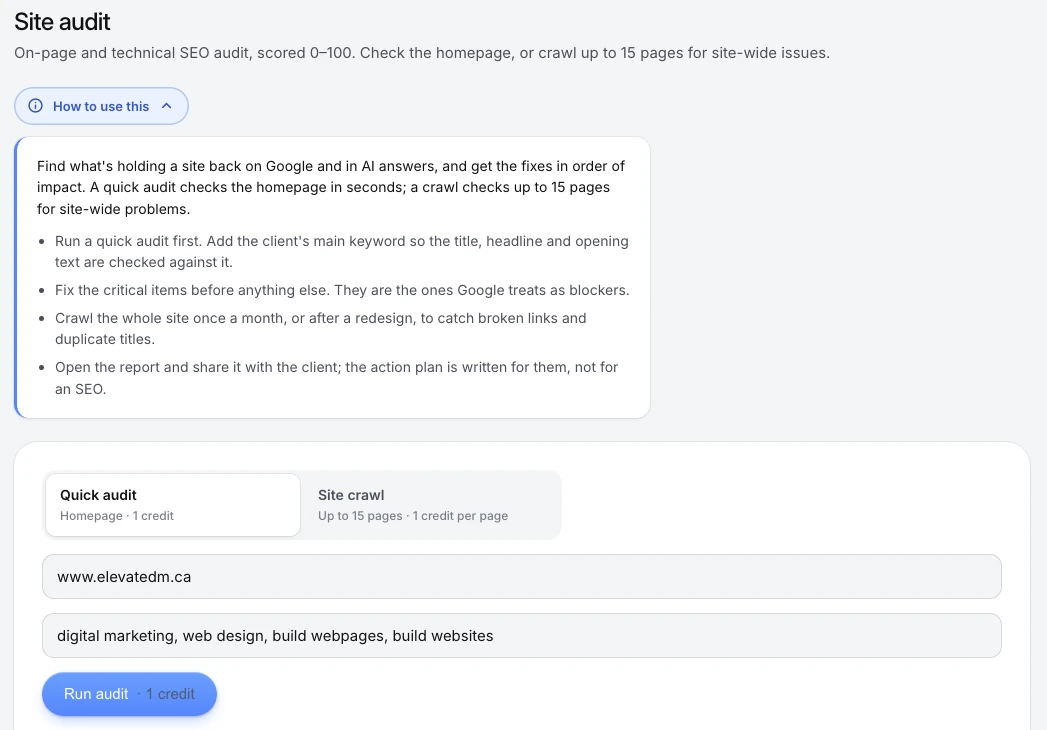
Start with the homepage because it's usually your strongest page and the one most of your internal links begin from. If the homepage doesn't point clearly to your main services, nothing further down will fix that.
Step 2: Read the score, then go straight to the link checks
The audit runs 28 checks and gives the page a score out of 100. My homepage scored 92, with 23 checks passing, 5 needing attention and none critical.
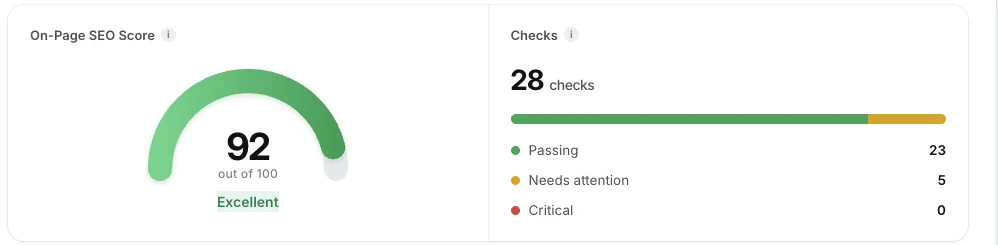
Three of the 28 checks are about internal links: Internal links, Link text and Broken internal links. Scroll to those cards.
Step 3: Check how many pages you link to, and from where
The Internal links card counts how many other pages on your site this page links to, and how many of those links are in the page content rather than the menu or footer. Menu and footer links repeat on every page, so links inside your actual copy carry more weight.
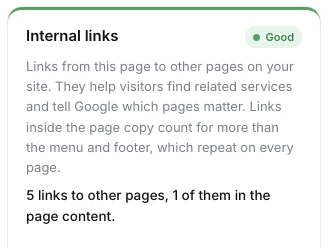
Here's how to read the result:
| What it says | What it means | What to do |
|---|---|---|
| No links to other pages | The page is a dead end | Link to your main services and your contact or booking page |
| Only 1 or 2 links | Visitors and Google have almost nowhere to go next | Add links to related services and the booking page |
| All links are in the menu or footer | The page copy doesn't point anywhere | Add links inside the text to the pages it mentions |
| Good, with a count of links in the content | The basics are covered | Look at the number in the content and ask if it's enough |
My homepage passed with 5 links, but only 1 of them is in the page content, on a page with about 1,700 words of copy. That's a clear opportunity: the homepage mentions web design, SEO and ads, and each of those mentions should link to its own page. A check can pass and still leave room to improve, so read the detail line, not just the badge.
Step 4: Check your link text and look for broken links
Two more cards cover link quality.
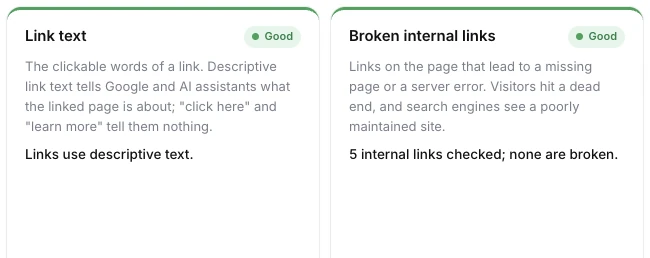
Link text flags vague anchors like "click here", "learn more" or "read more". If it flags yours, rewrite each one to describe where it goes:
- Instead of "Learn more", use "See our laser hair removal packages".
- Instead of "Click here", use "Book a free consultation".
- Instead of "Read more", use "How much lip filler costs in Kelowna".
Broken internal links tests up to 25 links on the page and lists any that lead to a missing page or a server error, with the address and error code. When you find one, you have three options:
- Update the link to the page's current address. This is the best fix when the page still exists under a new name.
- Add a 301 redirect from the old address to the right page, so links from other websites keep working too.
- Remove the link if the page is gone for good and nothing replaces it.
Step 5: Crawl the whole site for orphan and deep pages
A quick audit only looks at one page. Some of the most common internal link problems only show up when you look at how all your pages connect. Switch to Site crawl in the same screen. It checks up to 15 pages and costs 1 credit per page.
On top of running every check on each page, the crawl adds site-wide checks:
- Orphan pages: pages that no other crawled page links to. Google can usually only find them through your sitemap, and they get no internal support. This often happens to landing pages built for ads, or old service pages that fell out of the menu. Link to each one from at least one relevant page, or remove it if it's no longer needed.
- Deep pages: pages more than three clicks from the homepage, or not reachable from the homepage by links at all. Move important ones closer by linking to them from the homepage, the menu or a main service page.
- Broken links across the site: every page that links to an error, not just the homepage.
- Redirected pages: pages in your sitemap or navigation that redirect somewhere else. Update the links and the sitemap to point at the final address.
Run a crawl once a month, and always after a redesign or a batch of renamed pages. That's when links break most often.
Step 6: Fix the problems in order of impact
Every audit ends with an action plan that lists the changes worth making first, in order. Work through it from the top. For internal links specifically, this order works well:
- Broken links first. They're dead ends for visitors and the quickest win.
- Orphan pages next, starting with any page you want to rank or run ads to.
- Then add links inside your copy on the homepage and main service pages.
- Then rewrite vague link text.
- Finally, tidy redirected links and deep pages.
The audit doesn't change anything on your website. You or your web developer make the changes, so back up the site first and review each change before it goes live.
Step 7: Add the links that matter most
If you're adding links from scratch, this simple method covers most small business sites:
- List your money pages. These are the 5 to 10 pages that bring in bookings, such as your main services and your booking or contact page.
- Link to each one from the homepage, ideally from a sentence or section about that service, not just the menu.
- Link related services to each other. A microneedling page can link to chemical peels. A roof repair page can link to roof replacement.
- Link every blog post to at least one service page with descriptive text. Blog posts often attract visitors who aren't ready to book yet. The link gives them the next step.
- Link each location page to the services offered there, and each service page back to the locations.
- End each service page with a clear link to book.
Keep it natural. Add a link where a reader would actually want to go next, not in every sentence. A handful of well-placed links does more than dozens of forced ones.
Where to make these changes on common platforms
- Wix and Wix Studio: highlight text and add a link to a page. Redirects for renamed pages live in the URL Redirect Manager in Wix's SEO settings.
- Squarespace: link text from the text block editor. Redirects are set up as URL mappings.
- WordPress: link text in the block editor. Redirects usually need a plugin such as Redirection.
- Shopify: link text in the page or product editor. Redirects are in the URL redirects section of the admin.
Step 8: Re-run the audit and confirm the fixes
Once your changes are live, run the quick audit and the crawl again. The link cards should now show more links in the content, no broken links and no orphan pages. Each audit is saved as a report you can open later or share with a client, so you can show the before and after side by side.
Common internal linking mistakes
- Relying on the menu alone. Every page has the same menu, so it says little about which pages matter most.
- Linking with images or buttons that have no text. Give buttons clear words, and give linked images descriptive alt text.
- Orphaned ad landing pages. They're fine for ads, but if you want them to rank, link to them.
- Leaving old links after renaming a page. Rename, redirect, then update the links.
- Using the same link text for different pages, such as "our services" pointing to five different places.
- Adding nofollow to your own internal links. There's rarely a reason to do this on a small business site.
Frequently asked questions
How many internal links should a page have?
There's no magic number. Elevate SEO flags pages with fewer than three links to other pages, and points out when none of the links are in the page content. Beyond that, link wherever it genuinely helps the reader, which on most service pages means a few related services plus the booking page.
Do menu and footer links count?
Yes, they help Google find your pages. But because they repeat on every page, they say little about which pages matter most. Links inside the page copy give stronger, more specific signals, which is why the audit reports them separately.
How often should I audit internal links?
Run a crawl once a month, and always after a redesign, a menu change or renaming pages. Those are the moments links break or pages fall out of the structure without anyone noticing.
What's the difference between an orphan page and a deep page?
An orphan page has no internal links pointing to it at all. A deep page has links, but you need more than three clicks from the homepage to reach it. Both are harder for visitors and Google to find. The fix for both is to link to them from more prominent pages.
Audit your internal links
Run a quick audit on your homepage, then crawl up to 15 pages for orphan pages, deep pages and broken links.
Start my free trial